Streaming App Not Working on Your TV? Roku and Fire TV Fixes
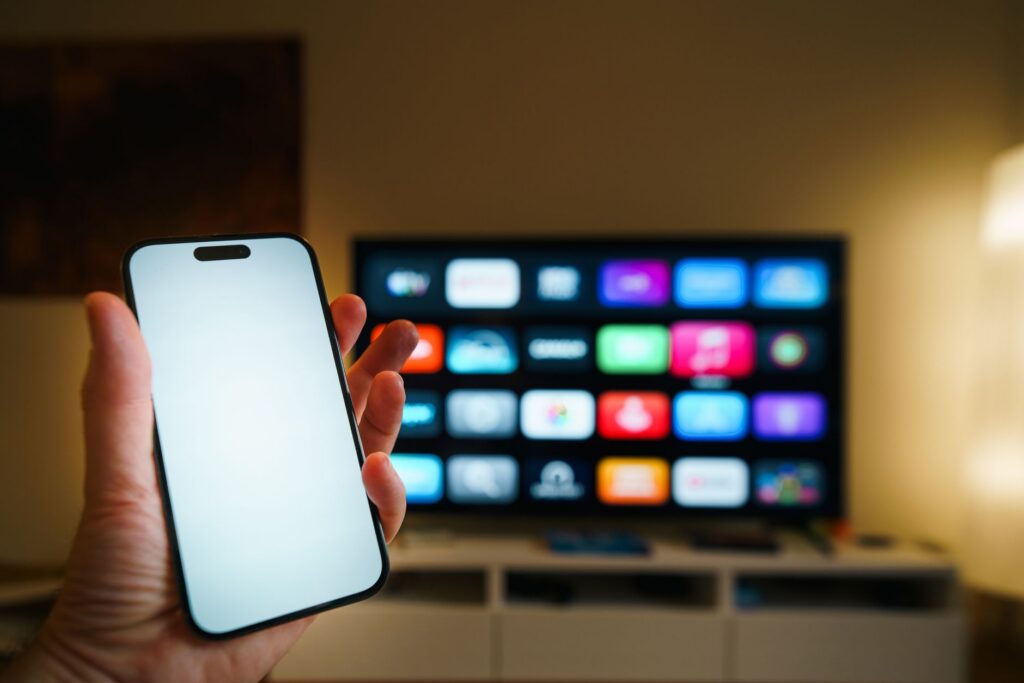
When a streaming app fails on your TV, first find out whether it is one app or all of them. If other apps work, check the failing service’s status, for example on our Netflix status, YouTube status, Disney+ status or Hulu status page. If every app fails, the problem is your TV, your device or your internet.
How do I tell if the service is down or my TV is the problem?
Test a second device and a second app. Those two tests separate most cases within a few minutes.
- Try the same service on a phone or laptop. If it works there on the same Wi-Fi, the service is up and the TV or app is the problem. If it fails everywhere, suspect an outage.
- Try a different app on the TV. Roku’s support page on playback issues says that if other titles from the same app also will not play, you should visit the streaming service’s website to check for an outage.
- Check our status page for the service, and the service’s own help center.
- Try mobile data on your phone. If the phone cannot load the service on mobile data either, the problem is wider than your home network.
| What fails | Likely cause | First step |
|---|---|---|
| One app, other devices fail too | Service outage | Check status; wait |
| One app, other devices work | App or TV software | Restart the device, clear the app cache |
| Several apps fail | Network or the device | Test the connection, restart the router |
| One title fails | The title | Try another title in the same app |
Our guides on Netflix error codes and YouTube not working go deeper for those two services.
In what order should I restart things?
Restart from the simplest item to the most involved, and wait for each to finish before the next. This order is common practice and not an official sequence from any single company.
- Close the app and open it again.
- Restart the streaming device or TV. On a Roku, go to Home > Settings > System > Power and choose System restart. If there is no Power submenu, unplug the power cord for at least 10 seconds and plug it back in, per Roku.
- Restart your router and modem by unplugging them for a short time, then plugging them back in.
- Test the TV’s connection from its network settings.
On a Fire TV, Amazon suggests restarting from Settings or unplugging the power adapter for a minute and plugging it back in.
How do I fix a single app on Roku?
Roku’s issues playing shows and movies page suggests trying another title in the same app and checking the service for an outage. If several channels fail, Roku recommends a network connection reset, found under Settings > Advanced system settings > Network connection reset. You will need to set up Wi-Fi again afterward.
A factory reset (Settings > System > Advanced system settings > Factory reset) erases all settings and apps, so Roku positions it as a last resort after the other steps.
How do I fix a single app on Fire TV?
Amazon’s Fire TV help page for apps that stop working or crash recommends clearing the app’s cache, updating the software and, if needed, reinstalling the app. Its cache article says to go to Settings, then Applications, then Manage Installed Applications. Pick the app, then clear the cache first and the data second, since clearing data signs you out of the app.
Menu names vary by Fire TV model, so look for the same options if your menu differs. Reinstall only from the official Fire TV app store.
How do I check my home network?
Check whether other devices on your Wi-Fi work. If your phone and laptop also struggle, read internet down at home. If only the TV struggles, move the router closer or connect the TV with an Ethernet cable if it has a port. Roku also lists steps for fixing Wi-Fi issues and improving the wireless signal on its support site.
A VPN on the router or a content filter can block some services while others work. Turn those off to compare, and turn them back on afterward.
What should I avoid?
- Do not install apps from outside the TV’s official store or sideload “fixes.”
- Do not enter your streaming login on a site that a pop-up sent you to. Sign in only inside the app or on the service’s official website.
- Do not call a “support” number from a search result; use the help page in the app or on the service’s site.
- Do not factory reset before trying the simpler steps.
Bottom line
Work out whether one app or all of them fail, check the service’s status, then restart the app, device and router in that order. Use Roku’s and Amazon’s menu paths for clearing cache and network resets. For a wider problem, see what to do when a big service is down.
FAQ
Why does an app work on my phone but not on my TV?
The service is probably up. The TV app, the TV software or the TV’s connection is the more likely cause.
Will clearing cache on Fire TV delete my account?
No, but clearing an app’s data signs you out of that app. Clear the cache first.
Should I factory reset my Roku?
Only as a last resort. Roku says a factory reset erases all settings, and you must set up your apps again.
Is my internet down if only one streaming app fails?
Probably not. If other apps and devices work, the problem is that app or that service.