GeForce NOW Lag and Connection Errors: Network Checks Step by Step
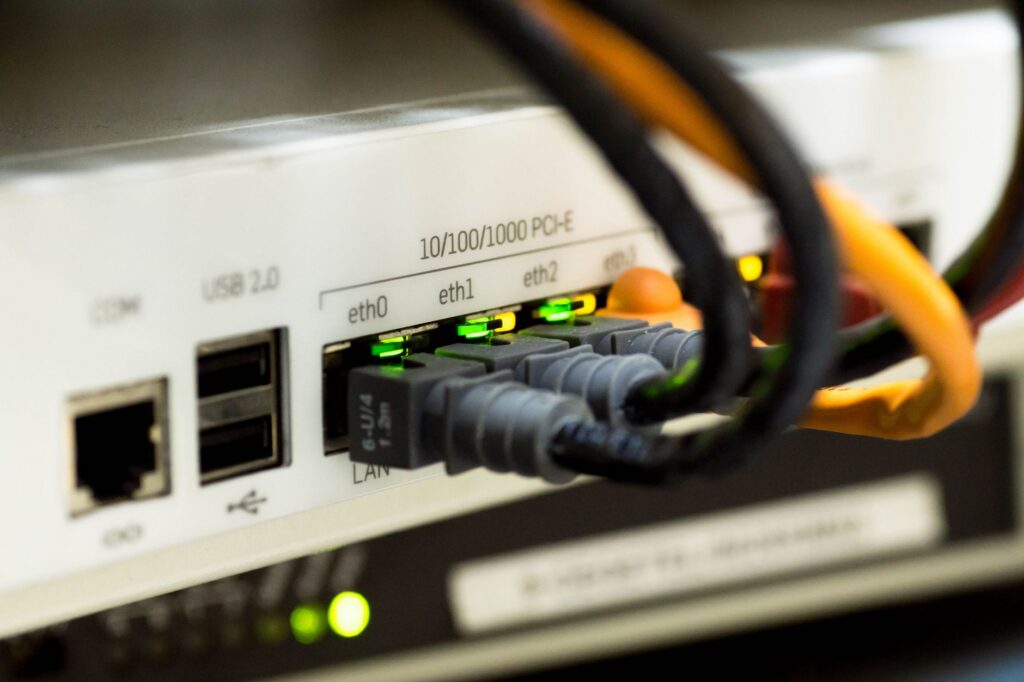
GeForce NOW needs a wired Ethernet connection or a router on 5 GHz WiFi, and NVIDIA requires network latency under 80ms to one of its data centers. If a stream stutters or will not start, test that latency first, then check how the device reaches the router, then look at the mouse and the device itself.
The NVIDIA requirements page does not publish a minimum download speed in the text covered here, so this guide sticks to the network rules the company states. For a connection that fails completely, start with the status checks below before changing anything at home.
What network setup does GeForce NOW recommend?
NVIDIA recommends a hardwired Ethernet connection, or a router with a 5 GHz WiFi connection. The same advice appears for Windows PCs, Chromebooks and Linux PCs, and VR headsets get the 5 GHz WiFi recommendation. Ethernet removes radio interference from the picture, which is why it comes first on the list.
On 2.4 GHz WiFi, neighbors’ routers, cordless phones and other devices in the home compete for the same band. Moving the device to the 5 GHz network of the same router is the quickest change to try when a cable is not an option.
How much latency is too much?
NVIDIA states that it requires less than 80ms of network latency from an NVIDIA data center. Latency is the time a signal takes to travel between your device and the server, and it is separate from download speed. A fast plan can still stutter if the route to the data center is slow or unstable.
NVIDIA points to a knowledge base article on how to test your network. Run that test from the device you play on, over the same connection you normally use, so the result reflects the real setup. If the result is above the limit, a wired connection or a move to 5 GHz WiFi is the first change to make.
What should I check when a stream stutters?
- Connect the device by Ethernet, or move it onto the 5 GHz WiFi network and closer to the router.
- Run the network test from NVIDIA’s knowledge base article and compare the latency with the 80ms limit.
- Pause other heavy use on the same network, such as video streams and large downloads.
- If you play with a mouse, lower the mouse polling rate to 125Hz.
- Update the device to the latest operating system version, which NVIDIA recommends for VR headsets and similar devices.
The last two items come straight from the requirements page. NVIDIA says that players who use a mouse and see stutter can try lowering the polling rate to 125Hz, and it makes the same suggestion for Windows, macOS, Android TV and SHIELD TV setups. For macOS it also notes that the Apple Magic Mouse lacks dedicated left and right buttons and a scroll wheel, which games usually need, so it recommends a USB gaming mouse there.
NVIDIA also keeps a separate knowledge base article on stuttering and refers Mac users with stutter to it.
Does my membership tier affect streaming quality?
Yes, for resolution and frame rate. NVIDIA lists a Premium membership as a requirement for features such as 5K/4K/UW streaming resolutions, NVIDIA RTX, HDR, Cloud G-SYNC, and 90/120/240/360 FPS streaming in the native Windows PC app. An Ultimate membership is required for 1600p resolution and 120 FPS on a Chromebook, and for QHD resolution and 120 FPS in a browser.
On Android the Ultimate membership covers 1440p and 120 FPS. Pushing a high resolution or frame rate over a weak connection is a common reason for trouble, so lowering the streaming quality in the app is a reasonable test when the network checks pass but the picture still breaks up.
Which controllers and devices need extra care?
On iPhone and iPad a gamepad is required to play. A keyboard and mouse work only for navigating menus and typing usernames and passwords, and NVIDIA says they may not work at all because of limits in Safari. On smart TVs and head-mounted displays a physical keyboard and mouse can navigate the app, but a supported gamepad is needed to play.
On Android phones, NVIDIA recommends a gamepad clip over the on-screen virtual gamepad for long sessions. Some additional gamepads may need extra drivers or software updates to work, and NVIDIA recommends the latest Logitech G HUB software on Windows and macOS devices.
What if the stream will not start at all?
Look at the service status and your own network before touching settings. Our guides on Epic Games Launcher not working and Nintendo Switch Online network status show the same order of checks for other gaming services. If the whole home connection is down, the steps for checking a Frontier outage apply to any provider.
Quick answers
Is WiFi good enough for GeForce NOW?
NVIDIA recommends a router with a 5 GHz WiFi connection if Ethernet is not possible. The latency requirement of under 80ms still applies.
Does the mouse really cause stutter?
NVIDIA says that if you use a mouse and see stutter, lowering the polling rate to 125Hz is worth trying.
Do I need a paid membership to stream?
The page ties higher resolutions, RTX, HDR and high frame rates to Premium or Ultimate memberships. It does not describe other tiers, so check NVIDIA’s membership page for what your plan includes.
Checked against official sources in November 2026. Apps, menus and error codes change: check the official help page for the current steps.