Apple Pay Not Working at Checkout: Declined Cards and Wallet Errors
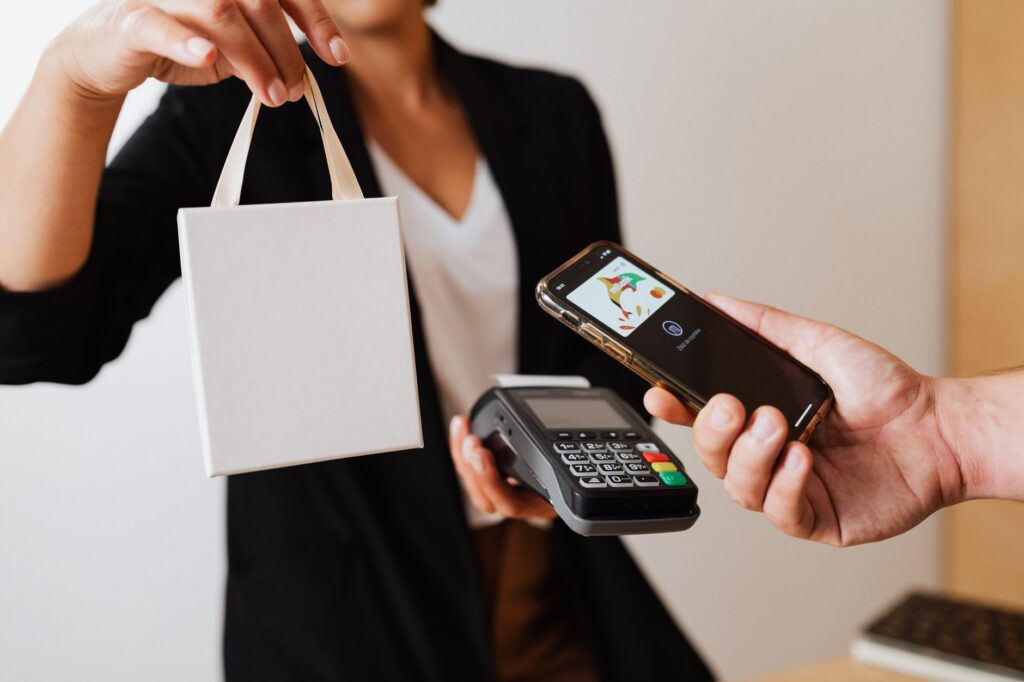
When Apple Pay fails at checkout, the decision almost always comes from your bank or card issuer: Apple routes every Apple Pay transaction to the issuer for approval, and Apple says it does not approve or decline cards itself. If a card is declined, or if Apple Wallet will not let you add it, Apple’s advice is to contact the bank or card issuer. Before calling, a few checks on your device and account can rule out the simpler causes.
Why is my card declined in Apple Pay?
A card used with Apple Pay is declined because of factors or rules set by the card issuer, according to Apple Support’s page on declined Apple Pay cards. Apple does not list those rules, because each bank sets its own. Only the issuer can tell you why a specific purchase was refused.
Apple also notes that Apple Pay is run by Apple Payments Services LLC, a subsidiary of Apple, and that neither company is a bank. The card in your Wallet is still offered by your issuer, so questions about limits, fraud holds, account status or a blocked merchant go to the issuer.
Card problems at online checkout can look the same whether you pay with Apple Pay or type in the card. Our guide to checkout errors and declined cards covers what to check on the store’s side.
Why can’t I add a card to Apple Wallet?
Apple’s page for cards that cannot be added to Apple Wallet lists these things to confirm first:
- your card issuer supports Apple Pay (ask the issuer)
- your device runs the latest version of iOS, iPadOS, watchOS, macOS or visionOS
- Face ID, Touch ID, Optic ID or a passcode is set on the device
- you are in a country or region where Apple Pay is offered
- your device is compatible with Apple Pay
- two-factor authentication is turned on for your Apple Account
Apple also suggests checking for service outages or connection problems. Cards may not add if the Apple Account is locked, inactive or disabled, and in some cases a card is blocked for security reasons Apple does not spell out.
What do “Could Not Add Card,” “Invalid Card” and “Card Device Limit” mean?
All three errors send you to the same place: Apple says to contact your bank or card issuer if you see any of them while adding a card. The issuer decides whether a card can be used with Apple Pay and on how many devices, so Apple cannot clear these errors from its side.
How do I add a card correctly?
On iPhone, Apple’s Apple Pay setup instructions describe these steps:
- Open the Wallet app and tap the add button.
- Tap Debit or Credit Card for a new card, or Cards Found For You for a card you used before.
- Tap Continue.
- Hold the card close to the iPhone to add it, or tap Enter Card Details Manually and follow the prompts.
- Complete any extra verification your bank asks for. Some issuers want more information or ask you to download their app before they approve the card.
For Apple Watch, open the Apple Watch app on the paired iPhone, go to the My Watch tab, tap Wallet & Apple Pay, then Add Card. On a Mac with Touch ID, the setting is in System Settings (or System Preferences) under Wallet & Apple Pay; on iPad and Apple Vision Pro, it is in Settings under Wallet & Apple Pay.
What else can stop Apple Pay from working?
Apple’s setup page lists several conditions that remove cards or block Apple Pay:
- Signing out of iCloud or removing your passcode removes all credit, debit, prepaid, transit and student ID cards from that device.
- In most countries and regions you must be 13 or older to use Apple Pay, and some regions set a higher age.
- Some card types are restricted by country: in Italy, Maestro cards cannot be added to iPad or Mac; in Australia, eftpos cards cannot be added to iPad or Mac; in the Netherlands, Maestro cards work on all compatible devices except Mac.
- In South Korea, local cards can be added only through the card issuer’s app.
- In China mainland, Apple Pay on the web works only in Safari on compatible iPhone and iPad models with iOS 11.2 or later.
On a Mac without Touch ID, you can pay with Apple Pay through a nearby iPhone or Apple Watch after turning on Allow Payments on Mac in the iPhone’s Wallet & Apple Pay settings. If several Apple services act up at once, our guide to iCloud sign-in and sync problems covers Apple’s status checks.
When should I call the bank?
Call the issuer after the device checks pass and the card still fails. Apple’s support pages point to the issuer for declined purchases, for checking whether a card is compatible with Apple Pay, and for the three Wallet errors. The number on the back of the card or in the bank’s app is the usual route.
Quick answers
Does Apple decline Apple Pay payments?
No. Apple says all Apple Pay transactions go to the card issuer for approval and that it does not approve or decline cards.
Why did my cards disappear from Apple Wallet?
Apple says signing out of iCloud or removing the passcode on a device removes all payment, transit and student ID cards from it.
Can I use Apple Pay in any country?
No. Apple Pay is not offered in every market, and Apple keeps a list of supported countries and regions on its support site.
Checked against official sources in November 2026. Apps, menus and error codes change: check the official help page for the current steps.