eSIM Not Working on a New iPhone: Setup and Dual SIM Fixes
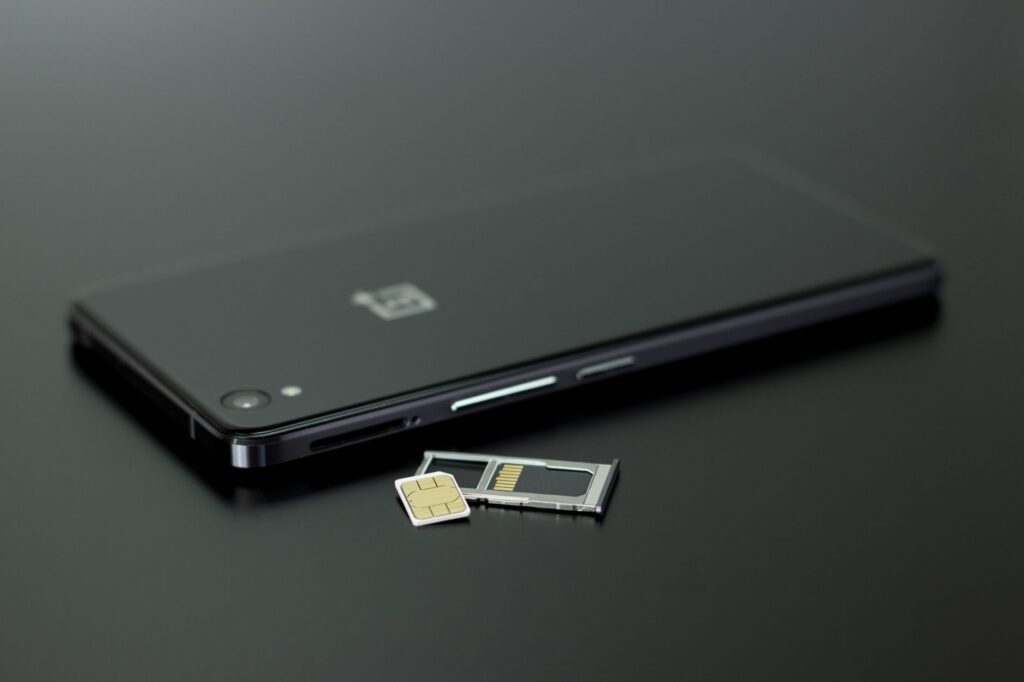
When an eSIM will not activate on a new iPhone, Apple Support says to connect the phone to Wi-Fi or a hotspot, confirm your carrier supports eSIM and that your plan is active, install the latest iOS, and then work through three quick resets: Airplane Mode, the cellular line switch and a restart. If the carrier name still does not appear in the status bar, update the carrier settings and call the carrier.
Dual SIM problems have their own checklist, covered below, because they often come down to plan eligibility rather than the phone.
What does a new iPhone need before an eSIM can activate?
Three things. The iPhone must be on a Wi-Fi network or a hotspot, although in some countries and regions iPhone models that are eSIM-only can activate without Wi-Fi. You need an active cellular plan and an eSIM from a carrier that supports eSIM. And the iPhone must run the latest iOS version it can use.
If any of these is missing, fix it first. The steps that follow will not help a phone that is offline or a plan that was never activated on the carrier side.
Which steps should I try first when setup fails?
Apple lists three steps in order. After each one, swipe down from the upper-right corner of the screen to open Control Center and check whether your carrier appears in the status bar. If it does not, move on to the next step.
- Turn Airplane Mode on, then off.
- Open Settings and tap Cellular. Look for the number you are trying to activate. If it is listed, turn the line off and back on.
- Restart the iPhone.
On iPhone models running iOS 18 or later, Apple also points to its Apple Support app, which can run extra diagnostics to help find the source of a problem.
How do I check for a carrier settings update?
Open Settings, tap General, then About. Scroll to the eSIM section, where the carrier name and a version number appear next to Carrier. Tap the version number. If an update is available, a prompt asks you to choose OK or Update.
If no prompt appears, the carrier settings are current and the next step is the carrier itself.
What should I have ready when I contact the carrier?
Apple suggests collecting the details before you call or chat, since the carrier is the one that can fix a plan or eSIM that fails to download. Write down the exact error message the iPhone shows. Then gather the identifiers for the phone and the account:
- the phone number
- the carrier account password or PIN
- the iPhone’s IMEI or EID, which you find in Settings under General, then About
Apple’s eSIM setup page does not describe Quick Transfer steps separately. If the transfer from your old iPhone stalls, run the same checks above and ask the carrier whether the plan is ready to move to the new phone.
Why is Dual SIM with eSIM not working?
Apple’s Dual SIM page applies to iPhone XS, iPhone XS Max, iPhone XR and later, which use a physical nano-SIM and an eSIM, or two eSIMs. Start by checking the plans:
- The iPhone must be unlocked, or both cellular plans must come from the same carrier.
- Both plans must be set up and ready to use.
- Your carrier or carriers must support Dual SIM with eSIM.
- If a CDMA carrier provides your first SIM, the second SIM will not support CDMA. Ask the carrier for details.
If you cannot set up the second eSIM, ask the carrier whether your plan is eligible for Dual SIM service. Employer-provided plans need a check with the company or the carrier. Also confirm that the carrier covers your area, that there is no service outage and that the plan has no billing-related block. You can look at a carrier’s own status page, and our Apple TV status check shows the same habit of checking for an outage before changing settings.
How do I find a missing eSIM or nano-SIM plan?
To see your plans, open Settings and tap Cellular (or Mobile Data). If the eSIM plan is missing, repeat the steps to set up the plan with eSIM, then open Control Center and make sure both carriers show in the status bar.
If the nano-SIM plan is missing, check the tray:
- Remove the SIM tray and look at the cards for damage or corrosion.
- Take the SIM card out of the tray and put it back.
- Close the tray all the way so it is not loose.
- Open Control Center and check that both carriers appear.
A card that does not work, does not fit or has been bent needs a replacement from the carrier. Contact the carrier as well if the iPhone shows “Card is not compatible with LTE.”
Why does my other line say No Service during a call?
An iPhone can use one cellular data network at a time. While one line is on a call, the other line shows No Service. If your carrier supports Wi-Fi Calling on the second number and Wi-Fi Calling is on, you can still answer incoming calls on that number. When the call is on a line that is not your default data line, turn on Allow Cellular Data Switching.
Quick answers
Do I need Wi-Fi to activate an eSIM?
Usually yes. Apple says the new iPhone must be connected to Wi-Fi or a hotspot, with an exception in some countries and regions for eSIM-only models.
Where do I find the IMEI or EID?
Open Settings, tap General, then tap About. Give both identifiers to the carrier if it asks.
What if nothing works?
Contact the carrier. For both eSIM setup and Dual SIM, Apple sends users to their carriers when the listed steps fail.
Checked against official sources in November 2026. Apps, menus and error codes change: check the official help page for the current steps.