Can’t Transfer Data to a New Android Phone: Fixes Step by Step
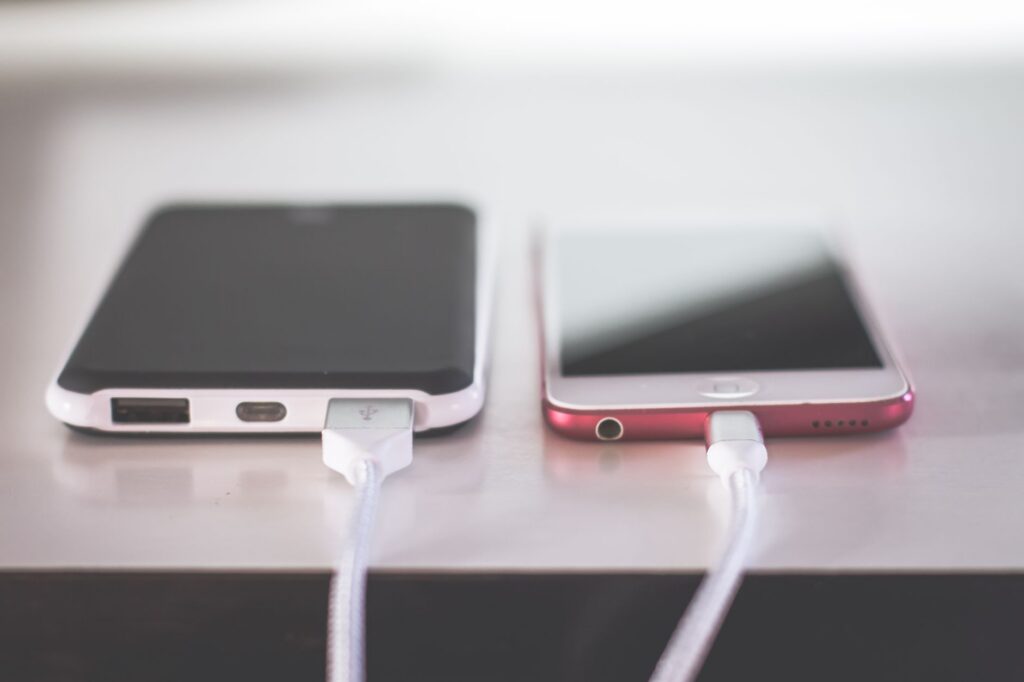
When copying apps and data to a new Android phone stops or fails, the usual causes are a loose or unsuitable cable, a dead battery, outdated software or a QR code that would not pair. Charge both phones, update them, restart the old one, swap the cable and try again. If setup finished but data is missing, you can usually copy it later from Settings or restore from a Google backup.
The steps below follow the help pages from Android Help, Google’s switching guide and Pixel Phone Help. Google notes that some steps vary by device.
What should I check on both phones before trying again?
Start with the basics. Both phones should be unlocked, charged and turned on, with either a strong Wi-Fi connection or a cable between them. Both should run the latest Android software. On the old phone, make sure you can unlock it with a PIN, pattern or password, sign in with your Google Account to transfer the most data, and back up first.
- Install available updates on the old phone, then restart it.
- If you use a cable, charge both phones fully before starting. A wireless charger helps keep them powered during the transfer, if you have one.
- Data transfer is supported from most phones with Android 5 or later.
Why does the transfer stop or never start?
A cable that comes out, a dead battery or a lost connection can interrupt the process. According to Google, most of the time it can be restarted after you recharge the phones. If that fails, try the transfer again from Settings after setup. If no such option appears, you may need to factory reset the new phone and start over.
For cable problems, work through this list:
- Unplug the cable, wait a few seconds and plug it back in on both ends.
- Try a different cable. Google notes that not all USB-C cables can transfer data.
- Plug the adapter into the other phone, in case it is on the wrong one.
- Look inside the charging port on the old phone for debris that blocks the connection.
If none of that works, try the Wi-Fi method. A cable transfer works with most phones running Android 5.0 and up, and with iPhones running iOS 8.0 and up. A BlackBerry or Windows device may not support cable transfer. If setup is stuck for more than 15 minutes, tap Stop copying, and when you see “Copying’s done,” check which data was copied.
What if the QR code will not scan or pair?
When setup shows a QR code, scanning it is required to transfer data from the old phone. If you cannot scan it between two Android phones, find the setup notification on the old phone and tap Set up. On the screen asking you to scan the QR code, tap Try another way, check that the codes match on both phones and tap Next. If the notification does not appear, tap Skip on the new phone and restore from a cloud backup later.
With an iPhone as the old device, only certain Android phones can transfer by QR code at the start. If the iPhone runs iOS 26.5 or earlier, the QR code may not work. You can tap Pair your devices manually and enter the session ID and pairing code from the iPhone’s Settings app. If no QR code appears at all, a cable or the Android Switch app still works. The Switch app needs an iPhone on iOS 15 or later with an internet connection. If the QR code does not open the App Store, go to g.co/android/sta on the iPhone to get the app.
For Wi-Fi transfers from an iPhone, connect it to a network that lets devices discover each other. If the iPhone warns that the network has no internet access, tap Keep trying Wi-Fi. Connecting a cable while the QR code is on screen forces a wired connection, and Copy data another way switches to the classic cable flow.
What if setup finished but data is missing?
If you skipped the transfer during setup, open Settings on the new phone and tap Finish setting up, or find the same prompt in the notification shade. It may exist only on some brands. You can also open Settings, tap Accounts & backup and choose the option to copy data from another device. Google says that option is available on all phones running Android 17 and later and on select devices running earlier versions. If you already transferred during setup, extra data has to come from that same phone.
On a Pixel 9 or later you can restore from your previous phone at any time without a factory reset. Go to Settings, tap Backup or copy data, then Copy data, then Start. If you lose power or connection partway, the same menu finishes a partial transfer. Pixel phones also show a summary of what copied and what did not. Certain data can be copied only during initial setup.
Some items do not copy during setup: downloads such as PDF files, photos, videos and music in hidden or locked folders, and apps that are not from the Google Play store. Photos in a Locked Folder cannot be backed up.
How do I restore from a backup instead?
A Google One backup saves apps and some app data, call history, contacts, SMS and MMS messages, and device settings, home screen layouts, widgets and wallpaper. Photos and videos are backed up separately through Google Photos. Open Settings, tap Back up or copy data, then Back up data. The backup can take up to 24 hours, and “On” appears under the data types when it is saved. Not every app can be backed up or restored.
To restore on the new phone, tap Skip at the QR code screen, connect to Wi-Fi, sign in with the same Google Account and pick the backup. You can restore from only one previous phone. To use a different one, reset the Pixel first.
Quick answers
Why do I see duplicates after copying data later?
Google says a Pixel tries to merge new data with existing data, but in rare cases some data types appear twice. You can delete the duplicates by hand or clear that data set and copy it again.
Does Google Maps data move over?
According to Google, Timeline data transfers along with Google Maps data. If saved places or location look wrong afterward, see fixes for Google Maps location and offline map problems.
What if a work profile blocks setup?
Tap Skip at the prompt to add your work account, finish setup, then go to Settings, Passwords and Accounts, Add Account, Google.
What about tickets and passes after a new phone?
Google’s pages do not cover wallet items. If a ticket stops working in the wallet app, this Ticketmaster wallet guide lists fixes.
Checked against official sources in November 2026. Apps, menus and error codes change: check the official help page for the current steps.