Google Fi Not Working: Fix Calls, Wi-Fi Calling and Service Abroad
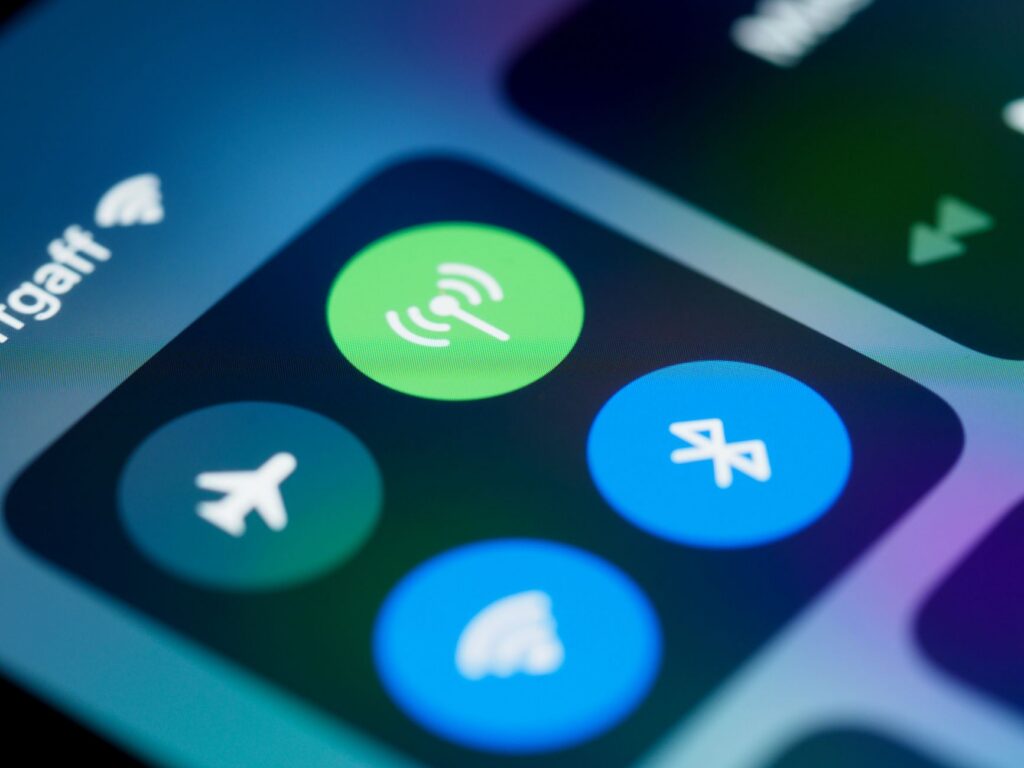
When Google Fi calls fail or drop, start in the Google Fi app: under the Support tab, tap Connectivity issues, then Phone Call issues, and let the automatic diagnostic check run. If that does not fix it, turn Airplane mode on and off, restart the phone, and update both the Fi app and Android. Then test calls on cellular and on Wi-Fi separately to see which network is the problem.
The steps below follow Google’s own help pages for call and Wi-Fi call problems on Google Fi and for Google Fi international service. After each step, Google suggests calling a friend, or having a friend call you, to check whether the problem is gone. Google also notes that an occasional dropped call can happen because buildings, weather or other factors interfere with the signal.
What should you try first when Google Fi calls fail?
Run the general checks in this order, testing a call after each one:
- If you just activated Fi or moved to a new phone, open the Google Fi app and follow the on-screen instructions until you reach the home page. Then make a test call.
- Use the Phone app that came with your phone or the Phone app by Google. Google does not support other dialer apps.
- In the Google Fi app, open the Support tab and tap Connectivity issues, then Phone Call issues. A diagnostic check runs on the phone. If the problem remains, upload the diagnostic report and contact Fi support.
- Open Settings, tap Network & Internet, turn Airplane mode on and then off again. Calls will not work while Airplane mode stays on.
- Restart the phone: hold the Power button until the menu appears, tap Power off, then hold the Power button again until the phone starts.
- Update the Fi app: in the Google Play Store, tap your profile picture, then Manage apps & device, then Updates available, and tap Update next to Google Fi if it appears.
- Update Android: in Settings, go to System, then System update, tap Check for update and install anything available. You may need to restart to finish.
Is the problem with Fi’s cellular network or with Wi-Fi?
Google recommends finding out which network is failing before going further. To test cellular calling, turn off Wi-Fi and place a test call. To test Wi-Fi calling, turn on Airplane mode, connect to a Wi-Fi network and make a test call, so the call has to go over Wi-Fi. Whichever test fails points you to the right set of fixes below.
How do you fix cellular calls that fail or sound bad?
Check the signal icon first. With no bars or one bar, call quality may suffer. If Fi has coverage where you are, move to a nearby spot with a better signal, and go outside if you are in a building or underground, since buildings can block signals. If Fi has no coverage at your location, connect to Wi-Fi and use Wi-Fi calling instead.
Outgoing calls inside the US can fail because of the number format. Google says to dial the full 10- or 11-digit number:
- (area code) + (local number)
- 1 + (area code) + (local number)
A VPN can also get in the way. Turn it off and test again. If you use the Google One VPN, you can let specific apps skip it: open the Google One app, tap Benefits, then under the VPN benefit tap View details, View settings and Allow apps to bypass VPN. Pick the app, tap Add, then tap Save at the top. Without Save, the change is not kept.
Could it be a Google Fi outage?
Google says an outage is possible when the problem starts suddenly at a place where calls used to work and calls to every number are affected. To check, try calling from another location more than 5 miles away so your phone connects to a different tower. If both people on the call still hear problems, Google lists poor coverage, a localized site outage or a billing problem on the account as possible causes. You can check these in the Fi app or at fi.google.com.
Why is Wi-Fi calling not working?
Wi-Fi calling works on phones designed for Fi and on most phones compatible with Fi. With Airplane mode on, open a browser and load a few websites to confirm the Wi-Fi network actually has internet access. If it does not, fix the Wi-Fi connection first. Our guide to fixing Wi-Fi drops on a Roku covers some of the same router checks. If the internet works, connect to a different Wi-Fi network and place a test call. When the problem shows up on only one Wi-Fi network, Google says to contact that network’s internet service provider.
Why don’t some calls reach you?
If no incoming calls arrive at all, check whether Call forwarding is turned on. If only certain numbers cannot reach you, look at your blocked numbers and at Family settings, which can block numbers that are not saved in your contacts.
How do you fix Google Fi service abroad?
Start on the home page of the Google Fi app, which shows whether your international data has been suspended. Phones not designed for Fi may lack some international features. Outside Fi’s supported destinations, you cannot use cellular calls, texts or data, but you can call over Wi-Fi when the connection is strong enough, at the same rates as calls from the US. US military personnel abroad can use Fi internationally once their status is verified, and may need to restart the phone after that.
If you are in a supported destination and service still fails, Google’s steps for Android are:
- Turn on mobile data. On a Pixel, go to Settings, Network & internet, SIMs. On a Samsung Galaxy, go to Settings, Connections, Data usage. On other Android phones, go to Settings, Network & internet, tap Settings next to your carrier and turn on Mobile data.
- Turn on international features. In the Fi app or on the Fi website, go to the Home tab. On an individual plan, select Manage plan; on a group plan, the admin selects the member’s name. Turn on Service outside the US and Calls to non-US numbers.
- Turn Airplane Mode on and off, make sure it ends up off, then wait 2 to 3 minutes before testing.
- Restart the phone. On newer devices you may need to hold Power and Volume Up together to open the power menu.
- If automatic network selection is on and data still fails, pick a network by hand. On a Pixel, go to Settings, Network & internet, SIMs, tap Google Fi and turn off Automatically select network. On a Samsung, go to Settings, Connections, Mobile networks, Network operators and turn off Select automatically. Wait up to 2 minutes for networks to appear and try each one. If one is labeled “Forbidden,” try it anyway; the label disappears if it connects.
Turn automatic network selection back on when you leave that area or get home. If nothing works, contact Google Fi support.
How should you dial international numbers on Fi?
From the US, calls to Canada and the US Virgin Islands use 1 + (area code) + (local number). For other countries, press and hold 0 until a plus sign appears, then dial the country code, area code and local number, for example +44 for the UK. When you are abroad, call home with +1 (area code) + (local number); Google says you do not need 011. If the plus format fails, dial the exit code of the country you are visiting, then the destination country code, area code and number. Google’s two help pages differ slightly on local calls in the country you are visiting: one says to dial the country code first, the other only the area code and local number, so try both.
Quick answers
Can I use any dialer app with Google Fi?
No. Google supports only the phone’s built-in Phone app or the Phone app by Google for Fi calls.
Does Airplane mode have to stay off?
Yes. Calls will not go through while Airplane mode is on, so switch it back off after each reset step, unless you are deliberately testing Wi-Fi calling.
Where do I check for a Fi billing or account problem?
In the Google Fi app or at fi.google.com, which Google names as the places to check coverage, local outages and billing issues. On an iPhone, app updates that will not download are covered in our guide to fixing stuck App Store downloads.
Checked against official sources in November 2026. Apps, menus and error codes change: check the official help page for the current steps.