Apple TV Not Working? Check Status, Then Fix Playback Steps
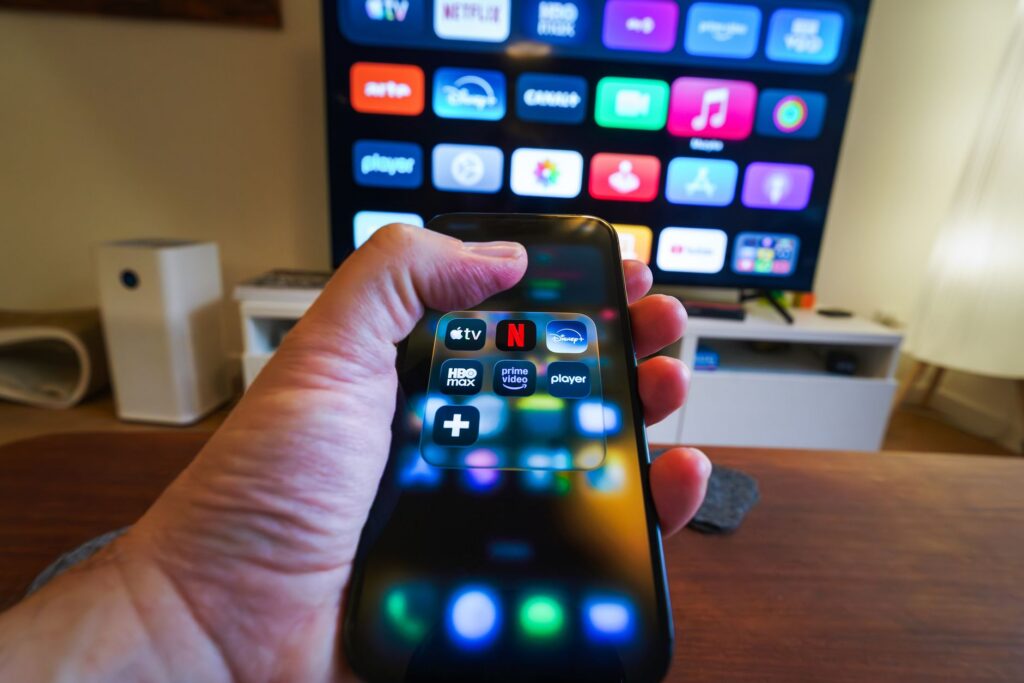
If a movie, show or sports event will not play in the Apple TV app, first open the Apple System Status page to see whether Apple or a third-party provider reports an interruption. If nothing is listed, update the app, make sure you can sign in to your Apple Account, check your connection and try another device. Apple’s support pages cover each of these steps, and they apply to phones, tablets, computers, smart TVs, streaming devices and game consoles.
How do I check whether Apple TV is down for everyone?
Apple’s streaming guidance starts with the System Status page. It lists service interruptions, and Apple Support also suggests checking a third-party provider’s website, for example if you stream through a partner service or a channel inside the app. When an interruption is listed, Apple’s advice is to try again later.
The status page tells you about problems on Apple’s side. It cannot show a fault in your home network or on your device, so if everything shows as normal, move on to the checks below. The same approach applies to other Apple services, and the guide to checking Apple status and fixing iCloud sync and sign-in covers it for iCloud.
Is the Apple TV app up to date?
An out-of-date app is the first thing Apple asks you to rule out. How you update depends on the device:
- On an Apple device, update the device software, which updates the Apple TV app.
- On a Windows PC, update Windows and your device’s drivers, then update the Apple TV app for Windows in the Microsoft Store.
- On a compatible smart TV, streaming device or game console connected to the internet, the app should update automatically. If it does not, contact the manufacturer or look up how to get the Apple TV app on your device.
- On an Android phone or tablet, update the Android operating system, then update the app from the Google Play Store. Your device’s manufacturer can help with updating.
What should I do when a video will not start?
Apple says to try playing or downloading the title again after each step in this list.
- Check the System Status page, or a third-party provider’s site, for interruptions. If there is one, try later.
- Make sure you can sign in to your Apple Account. If not, reset your Apple Account password or get a verification code and sign in with two-factor authentication.
- If your cellular connection is poor, switch to Wi-Fi. Apple notes that streaming HD content requires 8 Mbit/s or faster, and slower Wi-Fi tiers might not be fast enough.
- Try another device on the same Wi-Fi or cellular connection. If it fails there too, contact your internet service provider to ask about a network problem.
- If other people are watching on an Apple TV subscription or Apple TV channels, check that you are not over the limit for streaming on multiple devices.
Apple also says to confirm your Wi-Fi router is compatible with 802.11a/g/n/ac. Similar checks help with other video services, and the page on fixing YouTube videos that will not load or play follows a comparable order.
What if the picture is poor or playback keeps stopping?
Apple lists three fixes for poor quality or interrupted playback:
- If several people on your network are online, your speed may drop. Ask them to pause their internet use for a while.
- Turn a smart TV or streaming device off and on again. On an Apple device or a PC, restart it.
- On a device that can download content, use the download button to save the title and play it instead of streaming.
What if my Apple TV box shows a black screen or will not turn on?
A separate Apple Support page covers Apple TV 4K and Apple TV HD hardware that is not working, will not turn on or shows a black screen. It groups the checks by area.
HDMI setup. Unplug both ends of the HDMI cable and plug them back in firmly. Try a different cable: an Ultra High Speed HDMI cable for HDMI 2.1, or a Premium High Speed HDMI cable for HDMI 2.0. In the TV menu, choose the HDMI input that matches the port the Apple TV is plugged into. You can also try another HDMI port on the TV, starting with HDMI 1 or Input 1.
Video resolution. On an Apple TV 4K or Apple TV HD, hold Menu and Volume Down on the remote for 5 seconds. On a 2nd or 3rd generation Apple TV, hold Menu and Up for 5 seconds. The Apple TV then switches to a new resolution every 20 seconds. Select OK to keep one, or Cancel to quit.
Switches and receivers. If you use an HDMI switch or AV receiver, connect the Apple TV straight to the TV. If that fixes it, contact the switch or receiver maker.
Dynamic range and frame rate. With Match Dynamic Range or Match Frame Rate turned on, the Apple TV tries to detect what your TV supports. You may see a blank or flickering screen as the TV changes formats when playback starts or stops. Go to Settings, then Video and Audio, then Match Content to see whether either option is on.
Power. Unplug the power cord, wait 30 seconds, then plug it back in. Try another outlet or power strip, and a different Apple TV power cord if you have one. If the box still will not turn on, Apple says it may need service.
Quick answers
Can I get a refund if a purchased movie or show will not play?
Apple says that if you still cannot play purchased movies or TV shows after these steps, you can go to reportaproblem.apple.com and request a refund.
Who should I contact about other streaming apps?
For another streaming app you bought through the App Store, contact the app’s developer. Apple notes that an Apple TV subscription does not include third-party-branded subscription services, or content you rent or buy in the Apple TV app.
Does the status page cover problems with my router?
No. It reports service interruptions. For a network fault, test another device on the same connection and contact your internet service provider if it fails too.
Checked against official sources in November 2026. Apps, menus and error codes change: check the official help page for the current steps.